Your clients see their work. Not your base.
A portal with your brand on top of your Airtable base. Clients see their projects, approve new versions, send files and brief you on the next one. Every change goes back to the right record.
- One link
- to sign in. Clients never need a Airtable account.
- Both ways
- Approvals, notes and files go back to Airtable.
- 80+
- workspaces built. Yours won’t be our first.
- Custom
- designed for your agency, on your own domain.
Airtable runs the work. Sharing it with clients is the hard part.
What agencies run into when they give clients access to an Airtable base, from Airtable’s own documentation.
Clients need an Airtable account
To do more than look, a client has to create an Airtable account and sign in, even in Airtable’s own Portals. Without one, they can only view a shared page or fill in a form.
Source: Airtable Support, Interface Designer permissionsClients who approve take a seat
To approve or edit work inside Airtable, a client must be a paid editor or a guest in the paid Portals add-on. On the Team plan, a client who only comments is billed too.
Source: Airtable Support, how collaborators impact billingForms can’t take a sign-off
Airtable forms only create new records. For a client to approve an existing project, Airtable’s own method needs an extra table, pre-filled links and an automation.
Source: Airtable Support, updating records using a formShare links are all or nothing
Anyone with a shared view link sees the whole view, and the link can’t be limited to named people. Keeping clients apart means a separate view for every client.
Source: Airtable Support, the view share menuInside the base, they see all of it
A client added to a base, even as read-only, can see every table in it, download views as spreadsheets and invite other people.
Source: Airtable Support, base permissionsThey see Airtable, not your brand
Client-facing pages run on Airtable’s domain: your own domain is a beta on the top Enterprise plan only. And Airtable’s branding can’t be fully removed from forms.
Source: Airtable Support, custom domains for basesEvery “any update?” email is a client who can’t see their own project. Give them a window, not your base.
From sign-in to a new project.
This is what your clients see. Everything in it comes from your Airtable, and nothing in Airtable changes for your team.
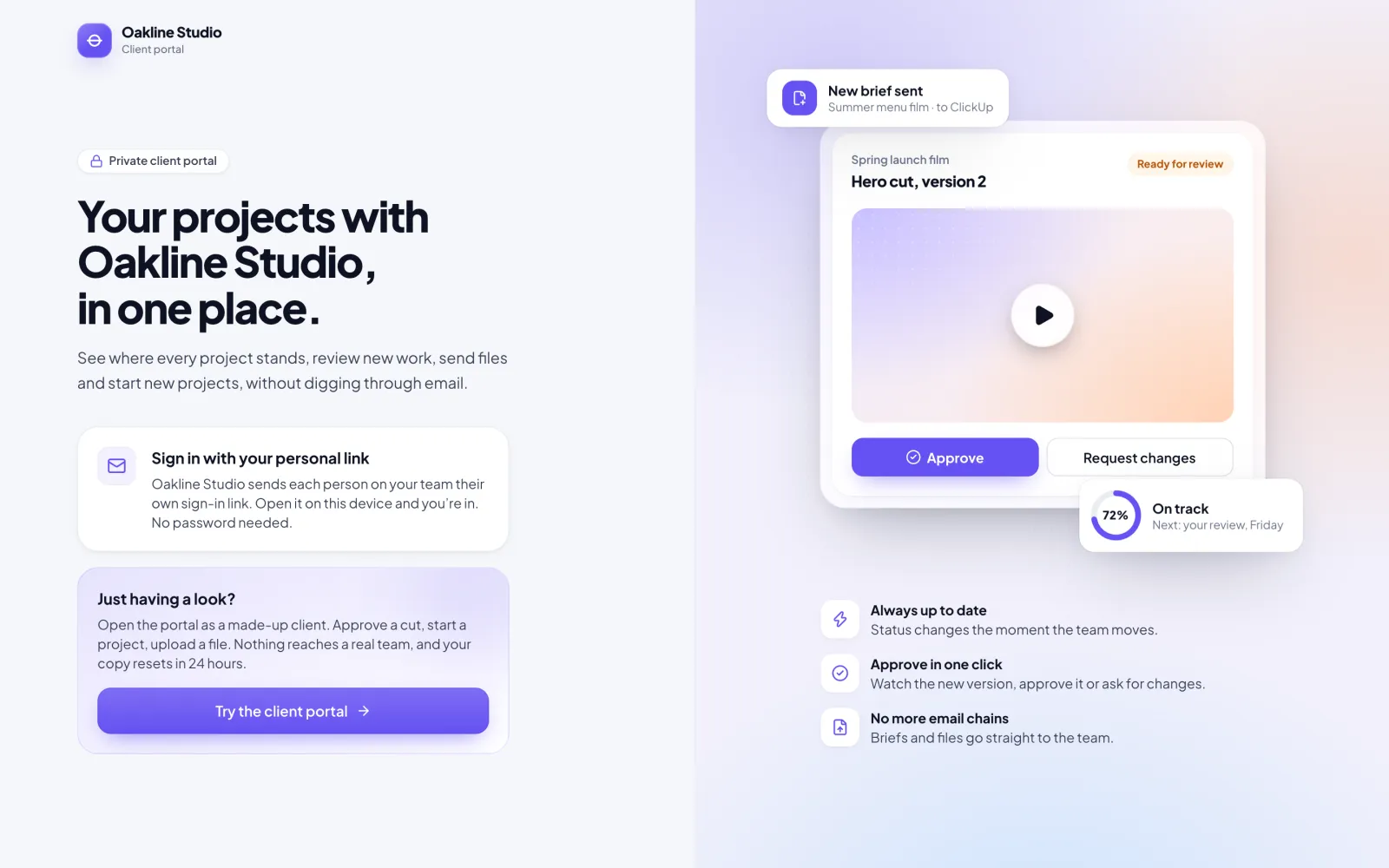
Sign in with one link.
You send each client contact a personal link. They open it and they’re in. No password, no new account to set up.
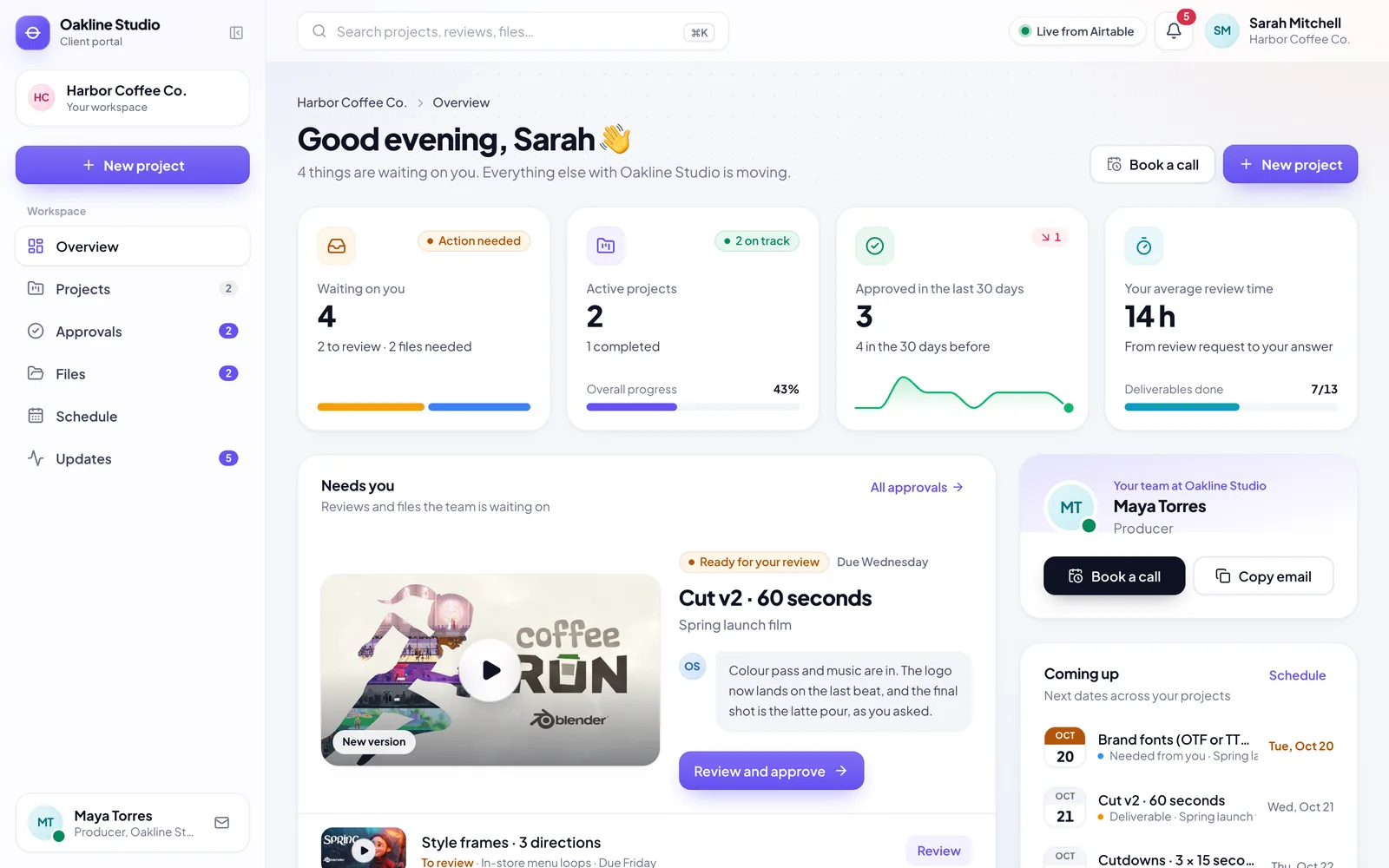
See every project, live.
Stages, dates, new versions to review and the files you need from them, updated as your team works in Airtable.
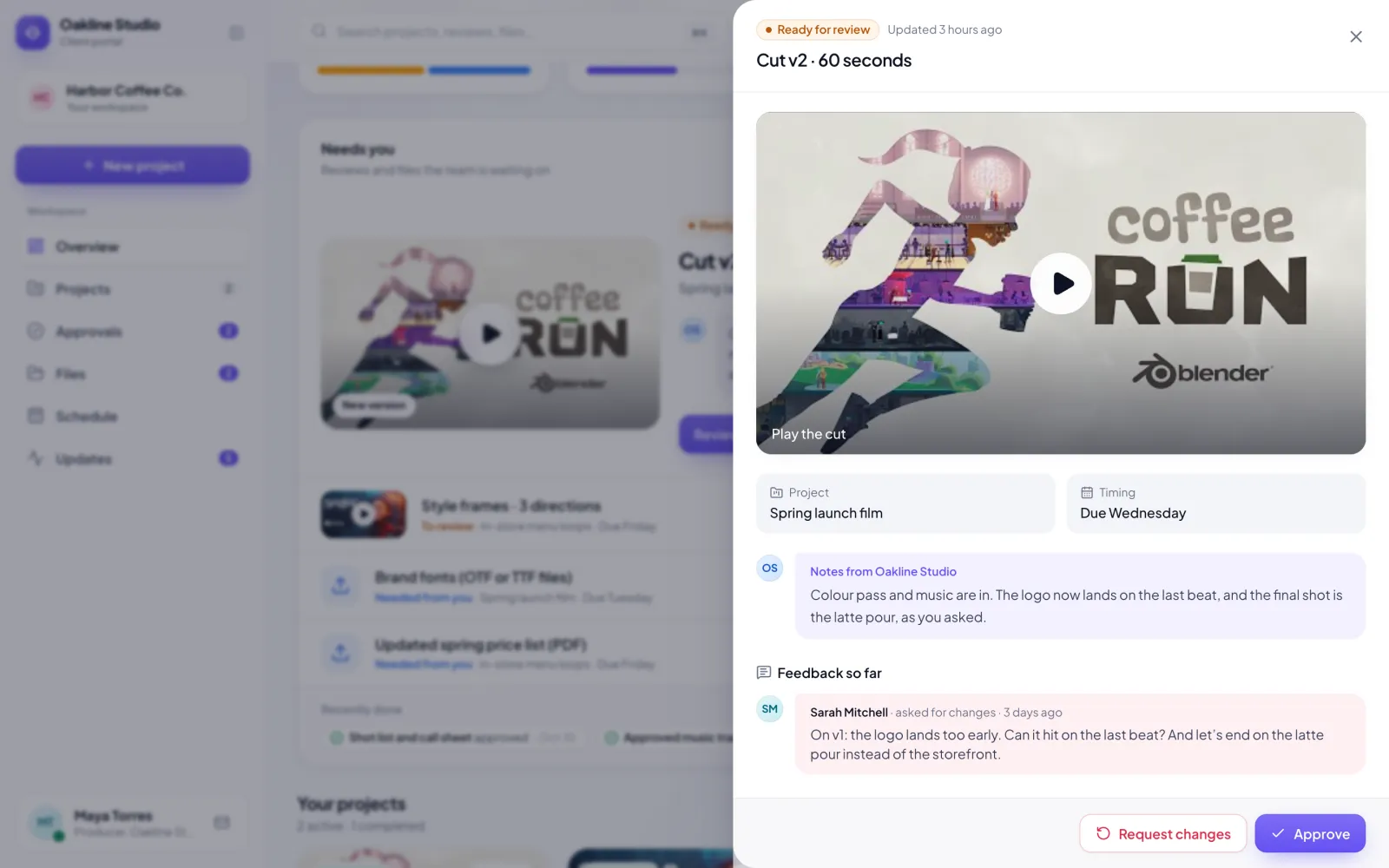
Review and approve in one place.
They watch the new cut, read your notes, and approve it or say what to change. It goes straight back to Airtable, with a comment.
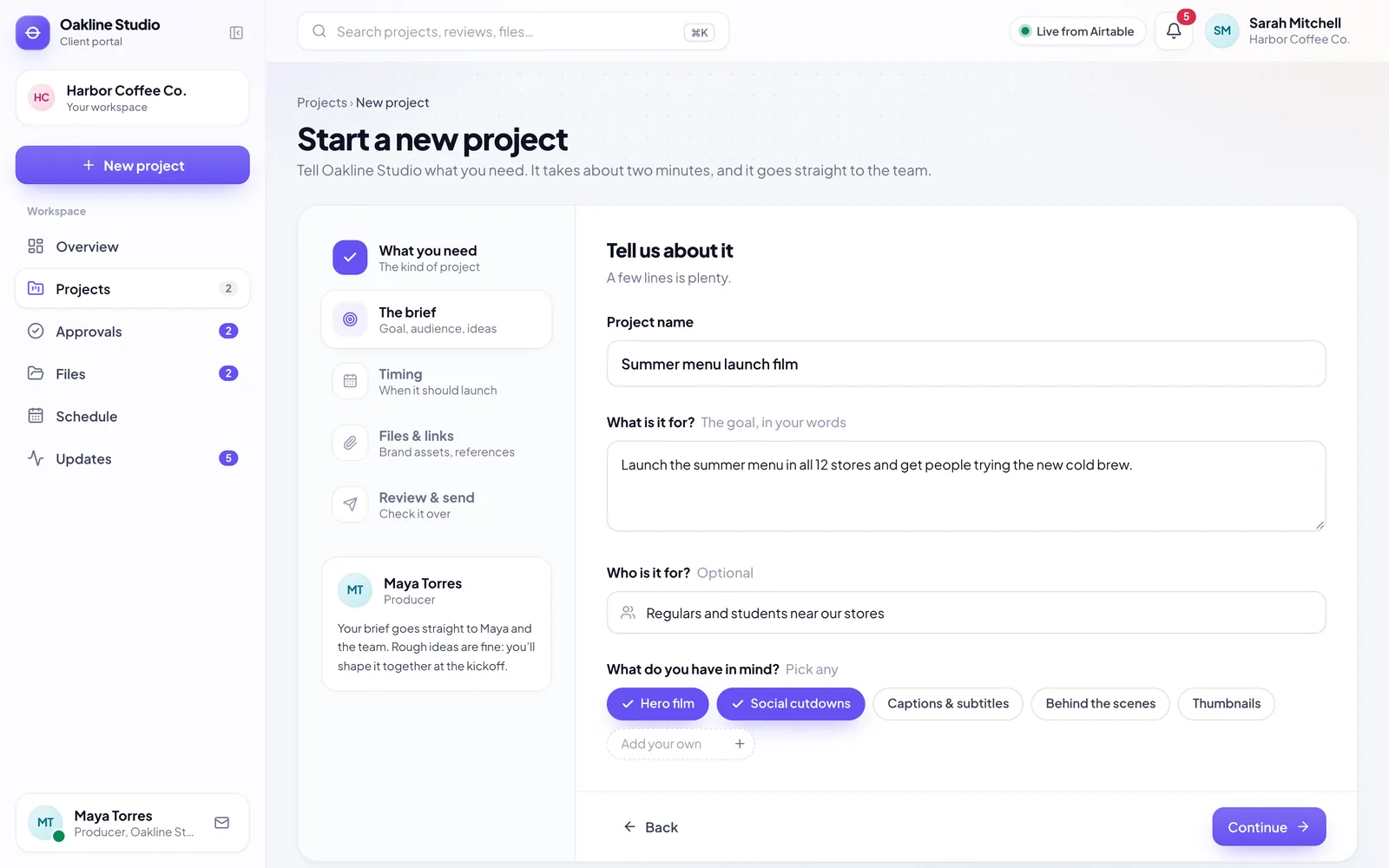
Start the next project.
A short brief: what they need, what it’s for, when, and any files. It arrives in Airtable as a new project, ready for the kickoff.
Your team keeps working in Airtable.
The portal is a window for clients. The work stays in your base, set up the way you already run it. We map the portal to the tables and fields you have; you don’t rebuild anything.
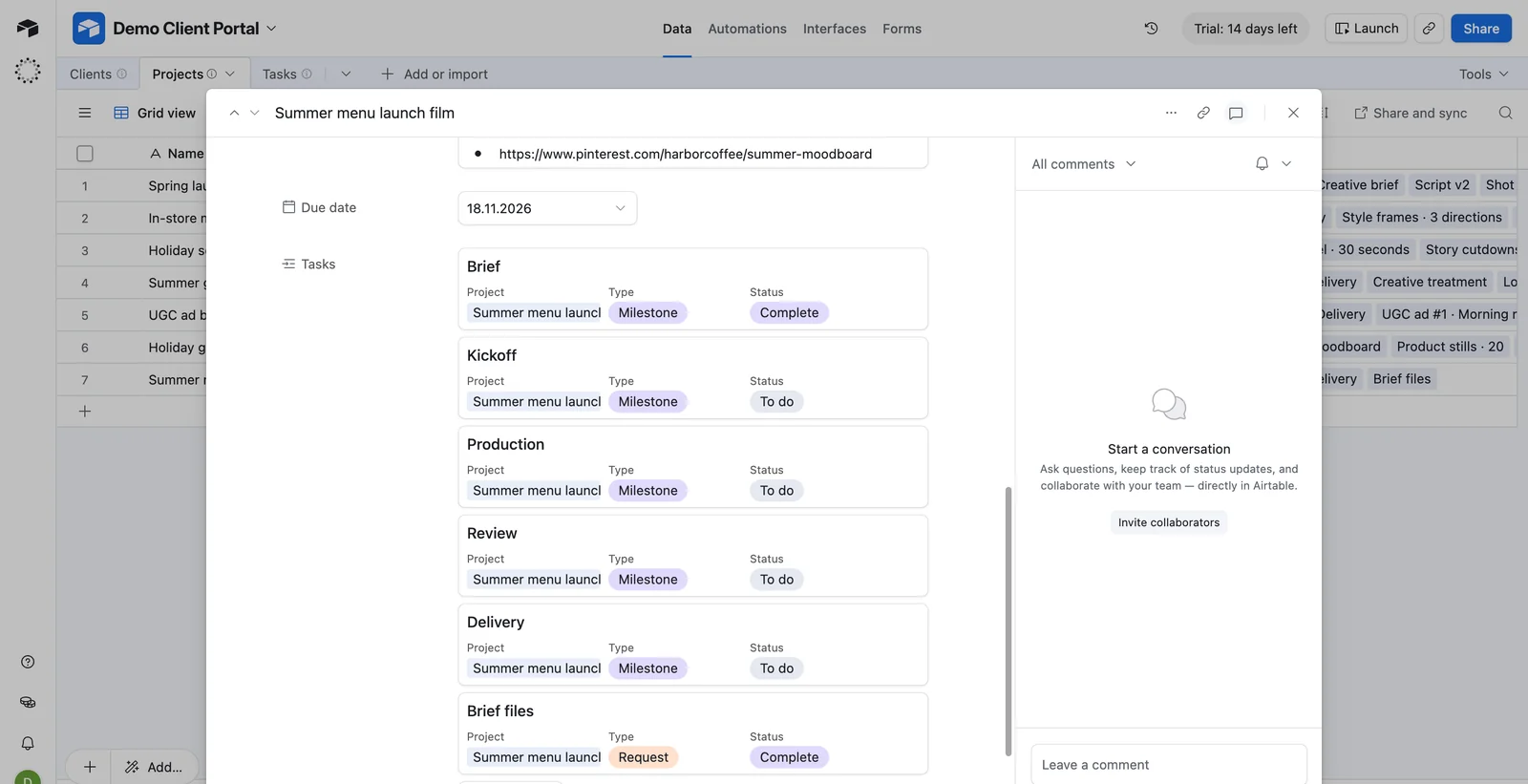
 In the portal
 Airtable
A client sends a new brief
A new record in your Projects table, with the brief, its stages and the files
They approve a version or ask for changes
The deliverable’s Status field changes, with their note as a record comment
They upload a requested file
The file lands in the record’s attachment field, and the request is ticked off
They open their portal
They see the records you marked for them: projects, stages, dates and versions
Your tables and field names stay yours. We match the portal to them during setup.
Connect any tool you choose.
Airtable stays at the centre. Next to it, the portal can work with the rest of your tools: chat, CRM, files, calendars and accounting. If a tool has an API, we can connect it.
 Slack
Slack HubSpot
 Google Drive
 QuickBooks
 Xero
Xero ClickUp
 Notion
 monday.com
 Gmail
Gmail Google Calendar
 Zapier
 Dropbox
 Calendly
 Figma
Figma- Any tool with an API
Payments, if you want them.
Send invoices through the portal and clients pay by card right there, through Stripe. Your team sees the payment the moment it lands.
- Each invoice sits next to the project it belongs to
- Card payments through Stripe, with receipts sent for you
- Paid invoices can sync to QuickBooks or Xero

Built and set up for you.
Your clients get a portal that looks like you. Your team gets fewer status emails, and the answers clients need are already there.
Custom designed for you
A design made for your agency, never a template, on a domain like portal.youragency.com.
Sign-in links, no passwords
Each contact gets their own link, and you can see who has signed in.
Live sync with Airtable
Changes in Airtable show up in the portal, and client actions go back to the right record.
Approvals and change requests
With notes, and a record of every decision a client made.
File requests and uploads
Ask for logos, fonts or price lists. Files go straight to the project that needs them.
New-project briefs
A guided brief that becomes a new project for your team.
Timeline, calendar and updates
Every stage and due date, and a feed of everything that moved.
A weekly email to each client
What moved this week and what needs them, every Monday.
An admin view for your team
Invite contacts, check the sync and open any client’s portal exactly as they see it.
It works on phones too, so clients can approve from wherever they are.
Four steps to your first client.
We do the setup. Your team brings the knowledge of how your client work runs.
A call
We look at how your client work runs today and where it lives.
Connect
We connect your Airtable base, plus any other tools you want in it.
Your brand
Your logo, colours and domain, with the stages and statuses you already use.
Invite your clients
Each contact gets a personal link, and your team gets a walkthrough.
Before you book.
Do my clients need a Airtable account?
No. Each contact gets a personal sign-in link from you. They never see Airtable, and they don’t take a seat in it.
Do we have to change how we work in Airtable?
No. We map the portal to the tables and fields you already use. You choose which records a client sees, and everything else stays internal.
Can clients see our internal work?
No. Only what you mark for a client reaches the portal, and each client only sees their own projects.
Can it match our brand?
Yes: your logo, your colours and your own domain.
Can it connect to our other tools?
Yes. Alongside your project tool it can connect to the tools you already use, like Slack, HubSpot, Google Drive or QuickBooks. If a tool has an API, we can connect it.
Can clients pay invoices in the portal?
Yes, if you want it. Clients pay by card through Stripe, and your team sees the payment straight away.
Can we try it first?
Yes. Open the live demo as a made-up client: approve a cut, upload a file, start a project. Your demo copy is private and never changes anything in Airtable.
Is the demo really connected to Airtable?
Yes. The demo agency’s projects live in Airtable, and the portal reads them live. On a call, we’ll send a brief from the portal and you’ll see it land in Airtable.
See it with your own projects.
We’ll walk through the live portal, look at how your client work runs in Airtable today, and show you how it would connect.
- A walkthrough of the live portal
- How it maps to your Airtable setup
- What it takes to launch it for your clients